 mobyx
Documentation / Build
Building workflows
#The canvas
Drag any node from the Toolbox (left) onto the canvas. Every workflow needs exactly one Start node. Nodes connect by dragging from an output port to another node's input; execution follows the wires, including branching and looping.
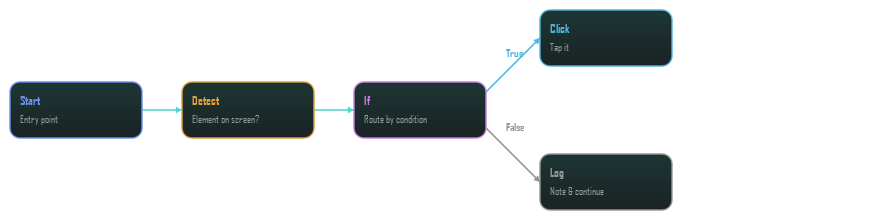
If has two output ports: True and False lead to different next nodes. That is how branching works.
#Selecting a node
Click a node to open its settings in the Property panel on the right. Fields that do not apply to your choice are hidden, so what you see is what matters.
#Running
Tick the phones, Mobyx Devices and browsers to run on, choose Parallel (all at once) or Sequential, and press Run. Before it starts, mobyx reads the logic and tells you about a decision that leads nowhere or a loop with nothing in it, with a button to find that step. The run bar also sets what to do if a step fails (stop, ask, skip, next item, leave the loop) and how many times to retry. Run needs a paid plan; building and saving do not.
#Tidy by itself
Workflows made by the Brain, the AI Assistant, the recorders or a pick are laid out left to right and wrapped into rows of seven, so a long one is a neat block, not a line running off the screen. Each is built in a new tab, so nothing you were working on is touched.
#Saving your work
Save, Load and Clear in the Workflow toolbar keep a graph on disk. Passwords and keys are never written into the file: each is moved into an encrypted store on this Windows account and the file holds only a reference, so sharing a workflow never shares a secret.