 mobyx
Documentation / Build
Target Inspector
#What it does
Target Inspector lets you point at something on the live preview and have the selected node fill in its settings, instead of typing coordinates, ids or selectors by hand.
#How to use it

#On a phone
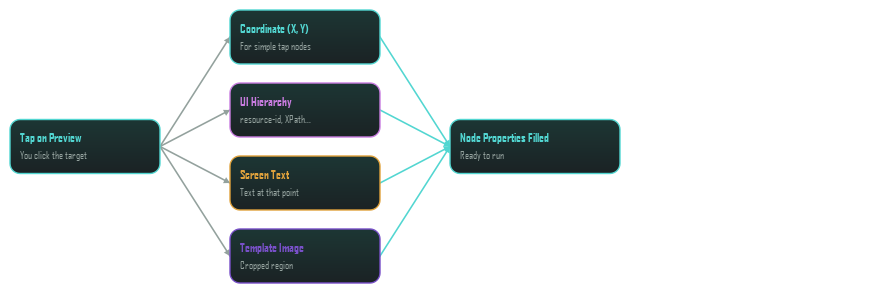
A simple tap node takes just the x/y. A Smart node runs the full pipeline — UI hierarchy, screen text and template image — so it can find the same element later even if its position shifts.
#On a page
While you point, the element under the pointer is outlined with its name, so you see what a click would pick. After the click, the node is given every way the page offers to find it: an Input node is told which field to type into (and keeps what it types); other Smart nodes get the text, label, placeholder, id, test id, CSS selector and XPath. The status line says how far to trust the pick: Solid (it has an id), Good, Fine today, or Fragile (only its position names it: pick the button or box around it).
#Picking several
On a page, the Target Inspector button has a menu: Pick one element, or Pick several elements. Click one after another; each fills the selected node as it goes and is kept. Then Make N steps from the picks builds a workflow in a new tab: a Navigate to the page, a typing step for each box, a click for each button or link, in the order you picked them.