 mobyx
Documentation / Extend
mobyx SDK
#What it does
The mobyx SDK is a second way to drive the app -- from your own scripts, CI pipelines, or a Jupyter notebook, instead of the visual canvas. It isn't a thin wrapper that calls out to the GUI, and it isn't a separate reimplementation that can quietly drift out of sync with it either -- sdk/ imports the exact same backend modules the app itself runs on: ADBActions for device control, the SmartClick / SmartDetect detection engine behind Smart Action nodes and Target Inspector, engine.workflow_runner.WorkflowRunner for executing a saved graph, and engine.node_executor.dispatch_executor() for running a plugin's executor. Same code path, same behavior, whichever one you drive it from.
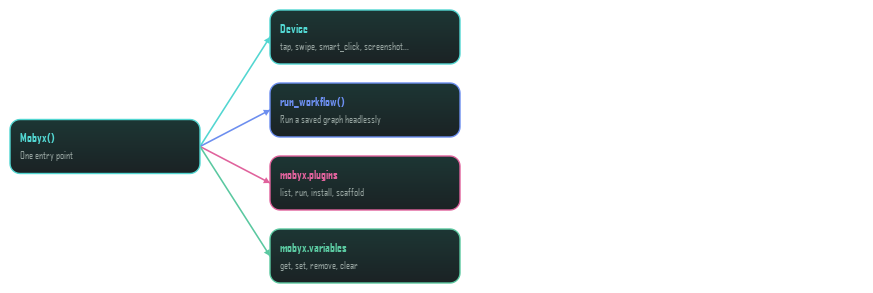
#One entry point, four surfaces
Everything starts from a single Mobyx() instance. Three of its four surfaces are plain attributes you use right away (.plugins, .variables, and calling .devices() hands you Device objects); the fourth, run_workflow(), is a method on mobyx itself rather than its own object, since running a saved graph doesn't need any ongoing state between calls the way the other three do:
#Quick example
A little of everything, to see the whole shape of it before the section-by-section detail below:
from sdk import Mobyx

mobyx = Mobyx()

# -- Device control --
device = mobyx.devices()[0]
device.tap(100, 200)
device.smart_click(text="Login")
device.type_text("hello@example.com")

# -- Plugins, no graph needed --
identity = mobyx.plugins.run("Identity Generator", locale="Japan")

# -- Shared variables --
mobyx.variables.set("environment", "staging")

# -- A saved workflow, headless --
result = mobyx.run_workflow("login.json", devices=[device.serial])#Finding devices -- mobyx.devices() / .device() / .device_info()
The starting point for almost everything else -- every Device method below is called on what these return:
mobyx.devices()                    # every connected Device, ready to use
mobyx.device("192.168.1.5:5555")   # one specific serial -- doesn't
                                     # check it's actually connected;
                                     # the first real call fails if not
mobyx.device_info(serial)          # raw dict: model, android version,
                                     # manufacturer, battery, resolution...
device_info() returns the exact same data the Device Manager page's table shows -- it's read straight from DeviceManager.get_device_info(), not recomputed separately for the SDK.
#Device -- touch & input
Raw, mechanical gestures -- the same primitives a Touch node uses, no detection involved:
device.tap(x, y)
device.long_press(x, y, duration_ms=1000)
device.double_tap(x, y, interval=0.1)
device.swipe(x1, y1, x2, y2, duration_ms=300)
device.drag(x1, y1, x2, y2, duration_ms=800)

device.type_text("hello", human_typing=False, speed="Normal")
device.key(keycode)   # numeric Android KeyEvent code

device.back()
device.home()
device.recent_apps()#Device -- app management
device.launch_app(package)
device.stop_app(package)
device.force_stop(package)

device.is_app_installed(package)   # -> bool
device.get_installed_apps() # -> list[str]#Device -- screen & shell
device.screenshot()               # -> BGR numpy array, in-memory,
                                   #    the same capture smart_click()
                                   #    uses internally -- no disk I/O
device.screenshot("out.png")      # -> saved path (may differ if
                                   #    "out.png" already existed)

device.screen_resolution()        # -> (width, height)
device.shell("pm list packages") # -> raw `adb shell` stdout#Device -- smart detection
The same detection pipeline behind the Smart Click / Detect nodes and Target Inspector -- pass whichever signals you have (text, a resource-id, xpath, content-desc, a class name, or a template image region); it runs all of them together and picks the best match:
device.smart_click(
    text="Login",              # visible screen text
    resource_id=None,           # UI hierarchy resource-id
    xpath=None,
    content_desc=None,
    class_name=None,
    click_type="Single Click",  # or "Double Click", "Long Press"
    target_type="Automatic",    # or force one detection method
)   # -> bool: found and clicked?

device.smart_detect(text="Login")   # same matching, doesn't tap --
                                      # -> DetectionResult:
                                      #    .found .center .confidence .source
Extra keyword arguments (templates=, region=, detection_quality=, ...) pass straight through to SmartClick.execute() -- see backend/smart/click.py for the full list if you need finer control than the common cases above.
#Running a saved workflow headlessly
result = mobyx.run_workflow(
    "my_workflow.json",       # a path, or an already-loaded dict
    devices=["emulator-5554"],  # serials, or Device objects
    mode="parallel",           # or "sequential"
)

result["ok"]        # bool -- no ERROR-level log lines
result["logs"]      # every log line the run produced, in order
result["devices"]   # the serials it ran against
result["mode"]      # "parallel" or "sequential"
Loads a graph saved from the editor's own 💾 Save button and runs it against the given devices, synchronously -- blocks until every device finishes (or the run is stopped) -- with no visible window. The exact same engine.workflow_runner.WorkflowRunner the GUI's Run button drives underneath: same node execution, same validation (exactly one Start node required). Needs a QApplication in the process (NodeGraphQt requires one even off-screen) -- one is created automatically if none exists yet, so this works from a plain script with no Qt setup of your own.
#mobyx.plugins -- running a plugin directly
A plugin doesn't need a graph to run -- mobyx.plugins dispatches its executor the same way a real workflow run does (both go through the same engine.node_executor.dispatch_executor()), so a plugin authored, tested, and run from a script behaves identically to the same node placed on the canvas:
mobyx.plugins.list()          # -> [{name, description, file, path,
                                #     has_executor, error}, ...]
mobyx.plugins.marketplace()   # -> same shape, plus "installed": bool

mobyx.plugins.install("Vibrate")     # by name or filename,
mobyx.plugins.uninstall("Vibrate")   # case-insensitive either way

path = mobyx.plugins.scaffold("Battery Logger")
# -> writes a ready-to-run starter file into plugins/

result = mobyx.plugins.run(
    "Identity Generator",   # matches with or without its emoji prefix
    locale="Japan",         # every extra kwarg becomes a node property
    gender="Female",
)
result["success"]           # bool
result["identity"]          # whatever this particular plugin returns
run(name, serial=None, context=None, **properties) -- each keyword argument is set as a property on that plugin's node before running (so they match whatever that specific NODE_CLASS declares -- check list() or the Editor tab to see a plugin's actual property names). Pass context= an existing engine.execution_context.ExecutionContext to share variables across several run() calls (or with an in-progress workflow); a fresh, throwaway one is created automatically if you don't.
#mobyx.variables -- shared Global-scope variables
The same store a Set Variable node (Global scope) reads from and writes to, and the one mobyx.plugins.run() falls back to when no explicit context is passed in -- useful for seeding a value before a run, or reading back whatever a workflow or plugin left behind:
mobyx.variables.set("environment", "staging")
mobyx.variables.get("environment")            # -> "staging"
mobyx.variables.get("missing_key", "default")  # -> "default"

mobyx.variables.remove("environment")
mobyx.variables.clear() # wipes every Global variable at once#What's not in the SDK yet
Device connection management -- Wi-Fi pairing, adb connect/disconnect, rescanning -- is Device Manager-only for now; the SDK expects a device that's already connected. Credential/Secret resources aren't exposed either. Listed here on the same principle as the rest of these docs: honest about the edges instead of leaving you to discover them by trial and error.